Televizo setup
AndroidStep-by-step guide
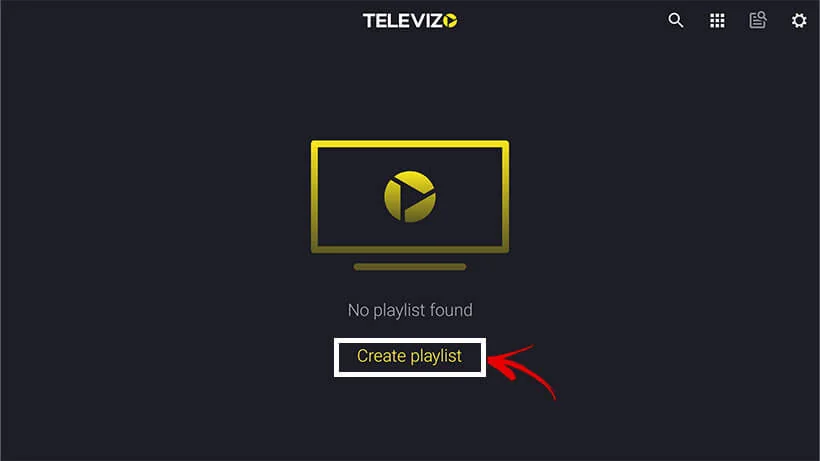
Use your M3U link on the new-playlist screen. Choose any playlist name, but include your account’s complete link in the URL field.
Before you start: Have the M3U link or server URL, username and password supplied by your IPTV provider ready. Only use content you have the right to access.
Setup steps
Use your M3U link on the new-playlist screen. Choose any playlist name, but include your account’s complete link in the URL field.
Make sure there are no spaces at the start or end of your details, and preserve uppercase and lowercase letters.
If the playlist does not load, check your internet connection first, then confirm that your account details are valid.
Setup screenshots
Use the following screenshots as a reference while following the steps.
Troubleshooting
Check your internet connection first. Then check the URL, username and password for extra spaces. App interfaces change with updates, so menu names may differ slightly.
Tip: For an explanation of URL, username, password or MAC address, see our IPTV terminology guide.